Your event page is where guests arrive after scanning your Catchmemo QR code. A few thoughtful design choices can make it feel instantly personal, whether you are planning a wedding, birthday, baby shower, graduation, or company event.
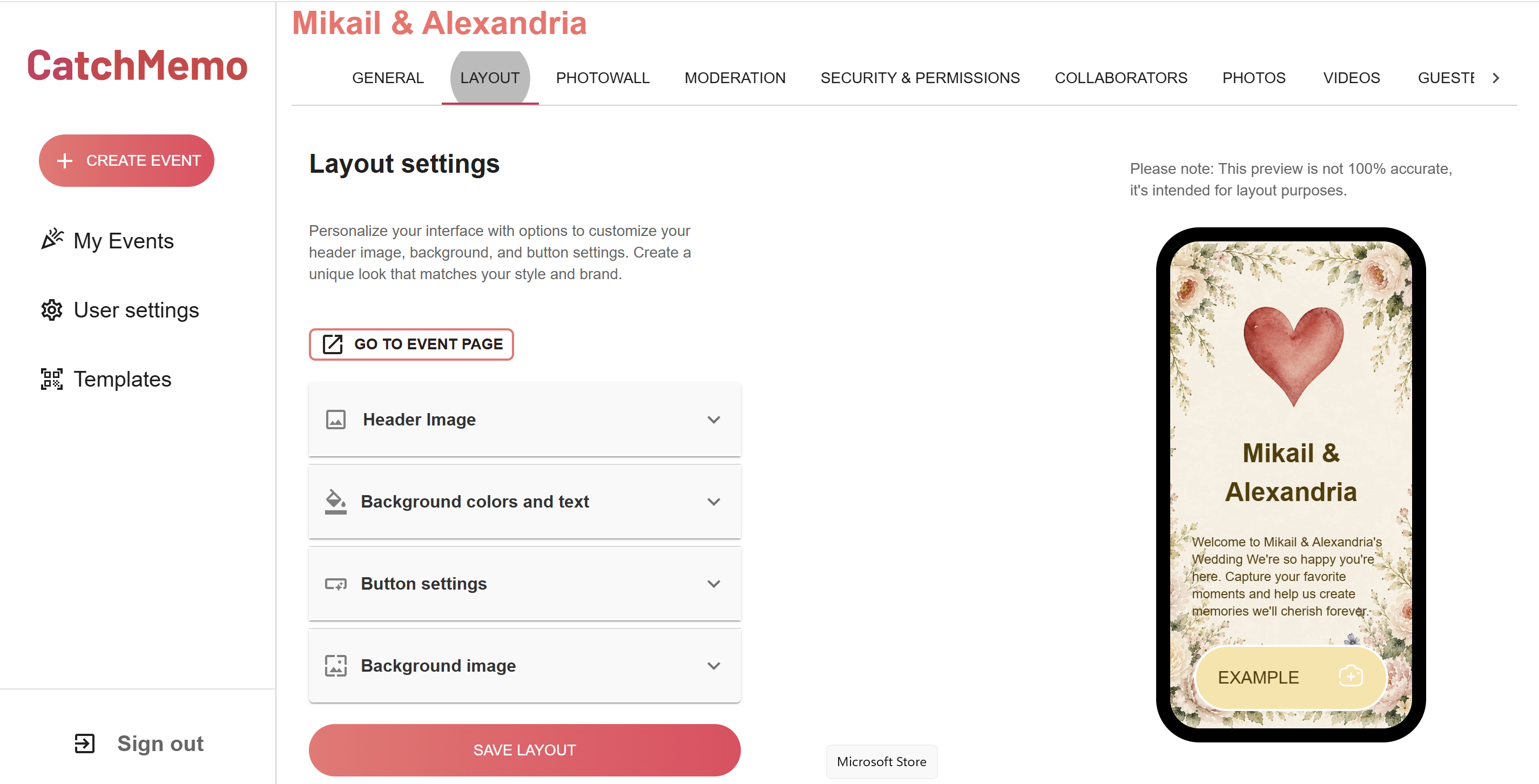
With Catchmemo’s Layout settings, you can customize the look of your guest page to match the feeling of your event. Add a beautiful image, choose your colors, refine the text, and create buttons that fit your style.
Start with a header image
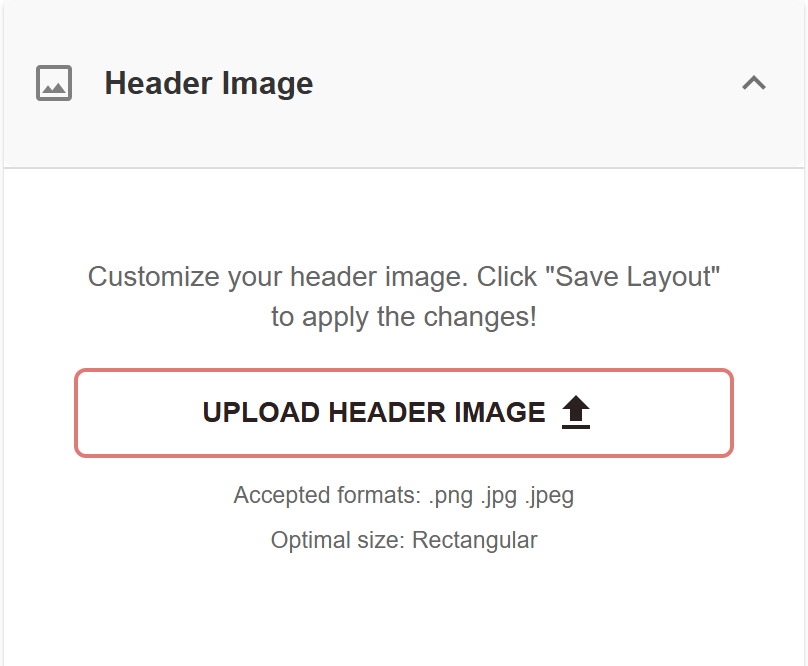
A header image is a simple way to make your event page feel like yours. It could be an engagement photo, a favourite image from the venue, a monogram, or a custom illustration.
In Layout settings, open Header Image and upload a .png, .jpg, or .jpeg file. A rectangular image works best. Once you are happy with the preview, select Save Layout to apply your changes.
For weddings, a soft floral image or a photo of the couple can set the tone before guests even start uploading. For birthdays and parties, try a colourful image that reflects the theme of the day.
Choose your background and text colours
Colour helps guests recognise the mood of your event right away. In Background colors and text, you can choose the page background, text colour, and optional gradient.
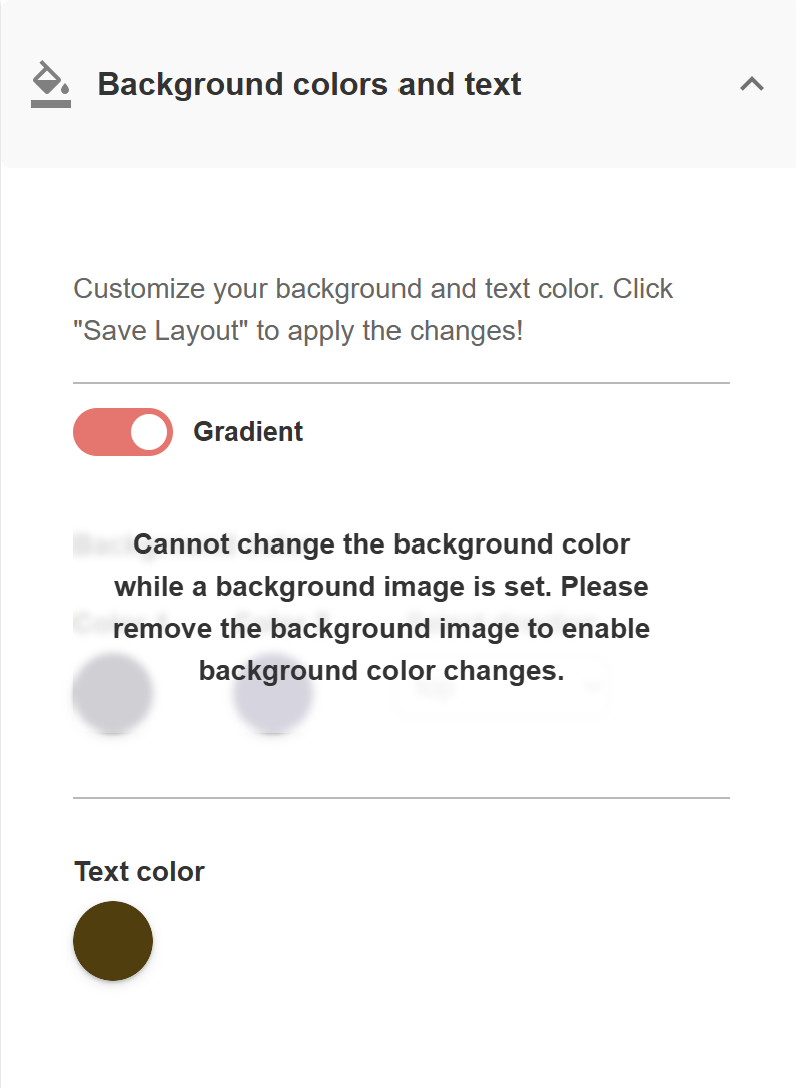
A calm, light background works well for elegant weddings and daytime celebrations. A bold colour can make a birthday, festival, or corporate event feel more energetic. Whatever style you choose, make sure the text remains easy to read.
A useful rule is to keep strong contrast between the background and the text. Dark text on a light background, or light text on a dark background, is usually the clearest choice for every guest.
Create buttons that match your event
Buttons guide guests through the experience, such as uploading a photo or opening the gallery. In Button settings, you can choose the button colour, text colour, icon or border colour, and button style.
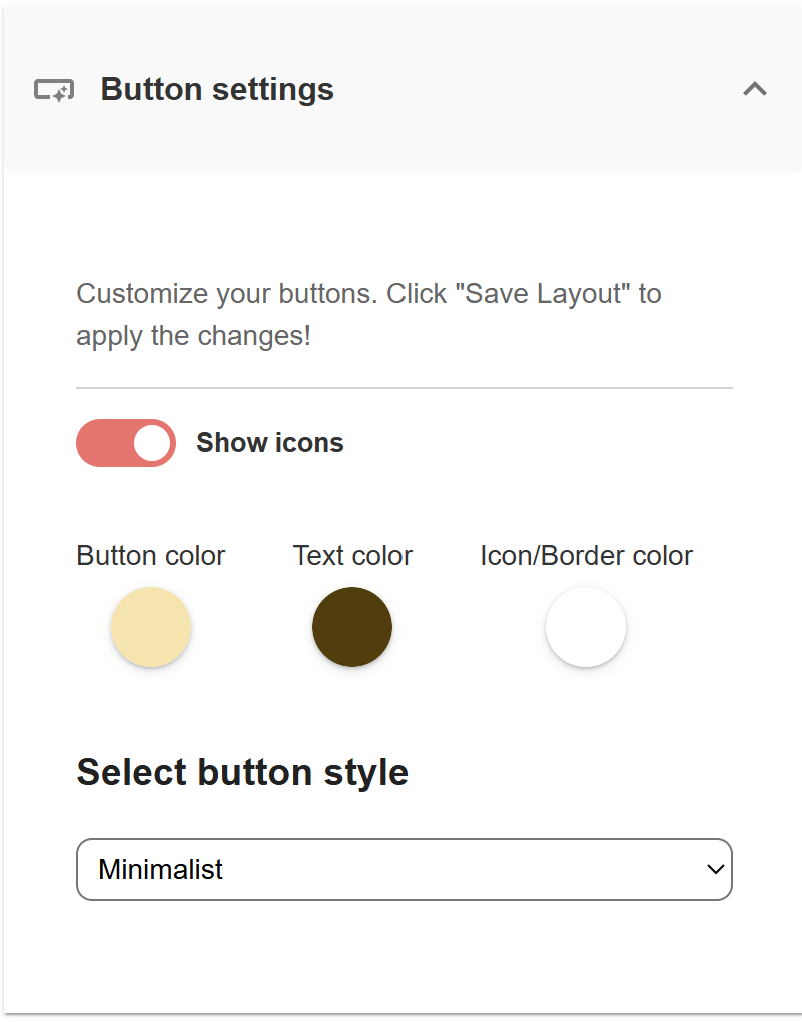
You can also choose whether icons should appear inside the buttons. A minimal button style works beautifully for a clean, modern event page, while a more expressive colour combination can suit a lively celebration.
Keep the button text clear and easy to understand. Guests should immediately know what will happen when they tap it.
Use a background image for a more immersive look
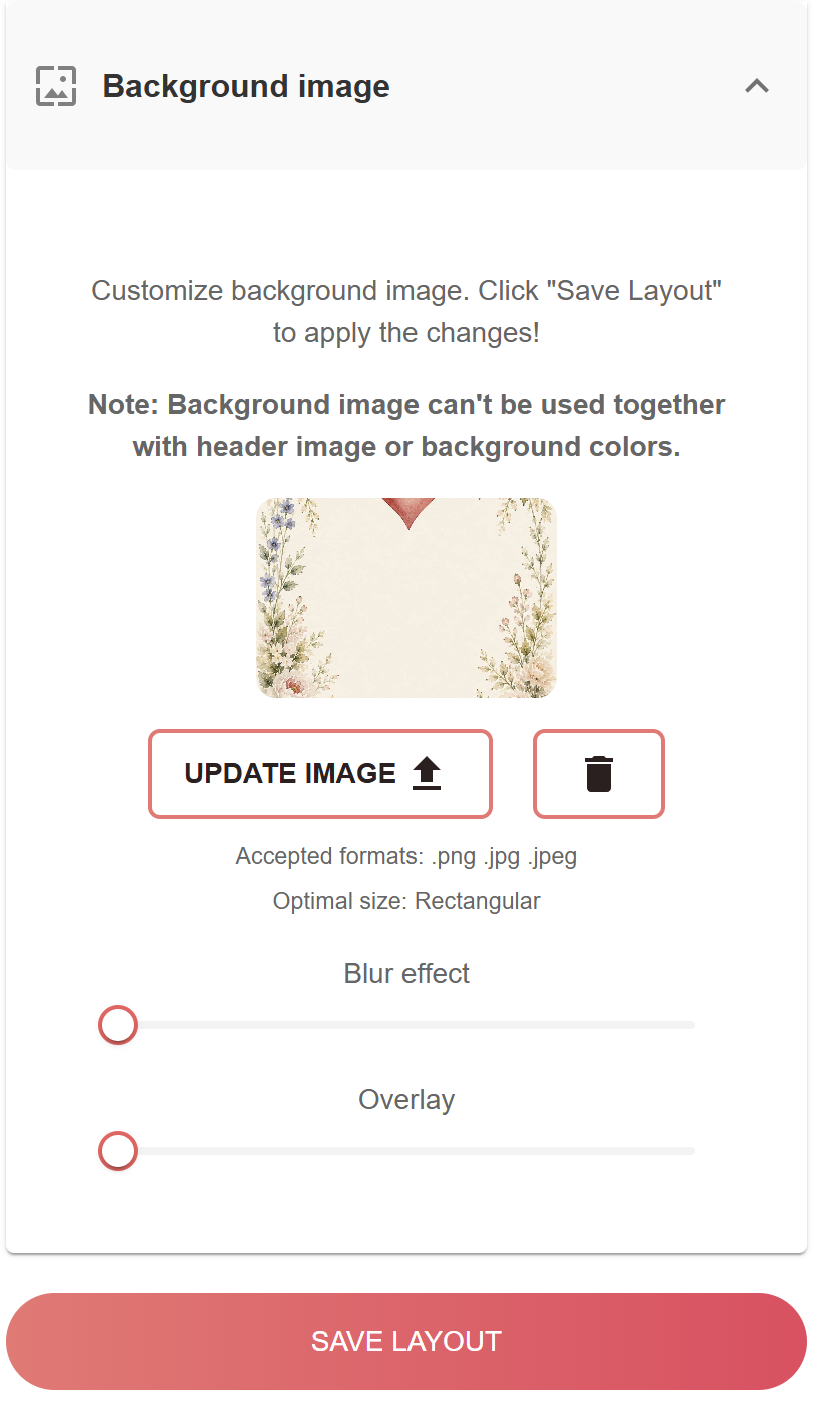
Instead of a header image or solid background colours, you can choose a full background image. This is a great option when you want the entire page to feel like part of your event design.
Catchmemo lets you adjust blur and overlay settings so your text and buttons stay readable over the image. A subtle overlay is especially helpful when your background image has a lot of detail, bright colours, or busy areas.
Choose one visual direction: a header image, a coloured background, or a full background image. Keeping the design focused creates a cleaner and more premium experience for your guests.
Preview, adjust, and save
The layout preview gives you a quick idea of how your event page will look on a phone. Use it to check that the names, welcome text, colours, and button style work well together.
The preview is intended as a layout guide, so it may not represent every detail exactly. Once your design feels right, click Save Layout to make it live for your guests.
Make the event feel personal
Your Catchmemo event page does not need to be complicated to feel special. A meaningful image, a readable colour combination, and a clear button style are enough to turn a simple upload page into part of the celebration.
When guests scan your QR code, they should feel that they have arrived in the right place: your event, your style, and a shared space for every memory.
Create your event and personalize a page that feels like part of the celebration.